Why, sometimes, we can’t paste an Illustrator path as a mask in After Effects
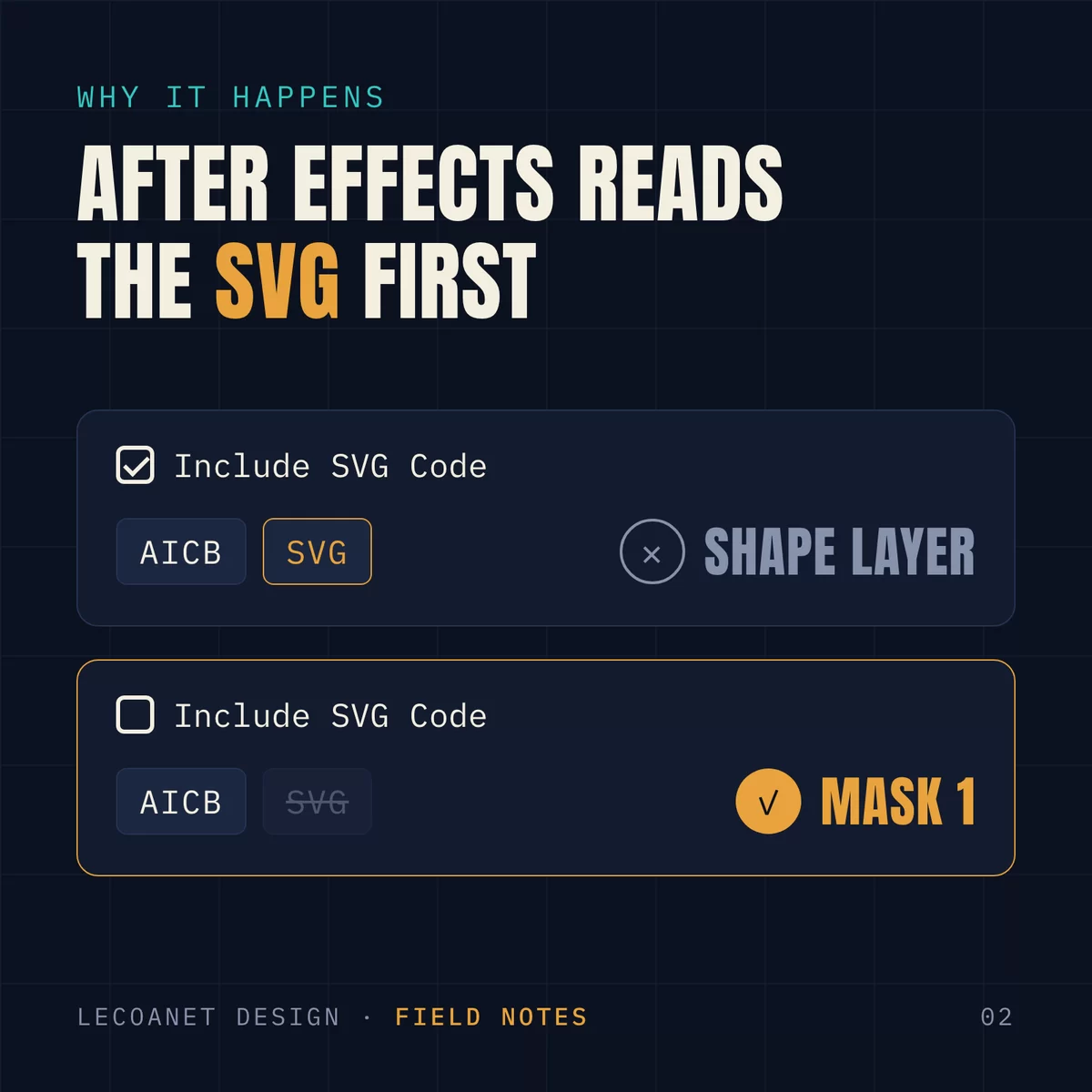
In Illustrator, go to Settings → Clipboard Handling and uncheck Include SVG Code. Copy the path again, select your layer in After Effects, and paste. You get a mask, not a shape layer.
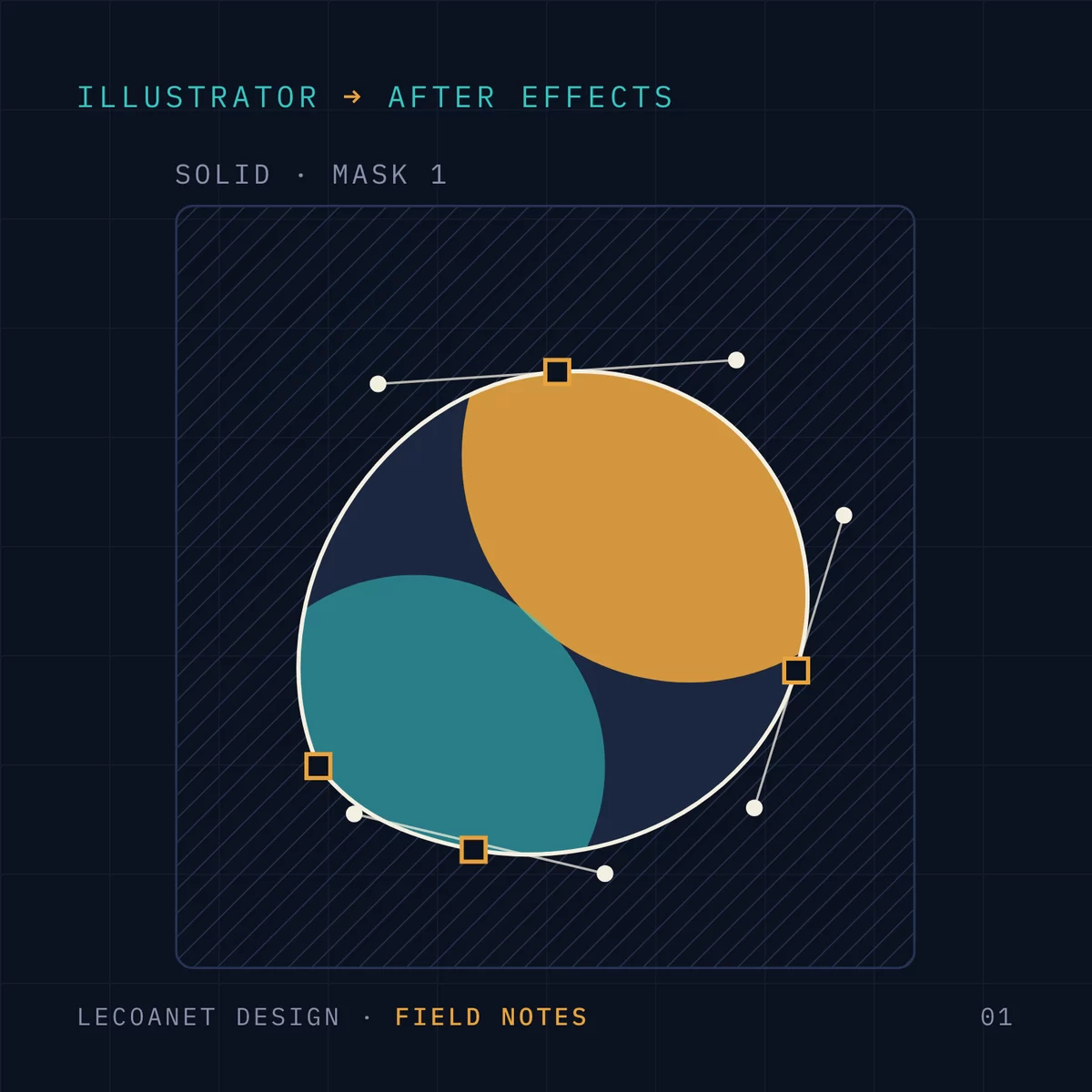
Copy a path in Illustrator, paste it onto a layer in After Effects, get a mask. It is one of the most basic moves in motion design. In recent versions, though, After Effects creates a new shape layer instead. It does this even with a layer selected, and even when you paste straight into the Mask Path property.
Why it happens
Illustrator has a clipboard setting called Include SVG Code. When it is on, Illustrator also puts an SVG version of your path on the clipboard. After Effects reads that SVG first and always turns it into a shape layer. Which layer or property you have selected makes no difference.
The fix
- In Illustrator, open Settings → Clipboard Handling (Illustrator menu on a Mac, Edit → Preferences on Windows).
- Uncheck Include SVG Code.
- While you are there, make sure AICB is checked, with Preserve Paths selected.
Copy the path again (⌘ C). Pasting into After Effects now works the way it used to.

Pasting the path as a mask
- New mask: select the layer in the timeline, then press ⌘ V.
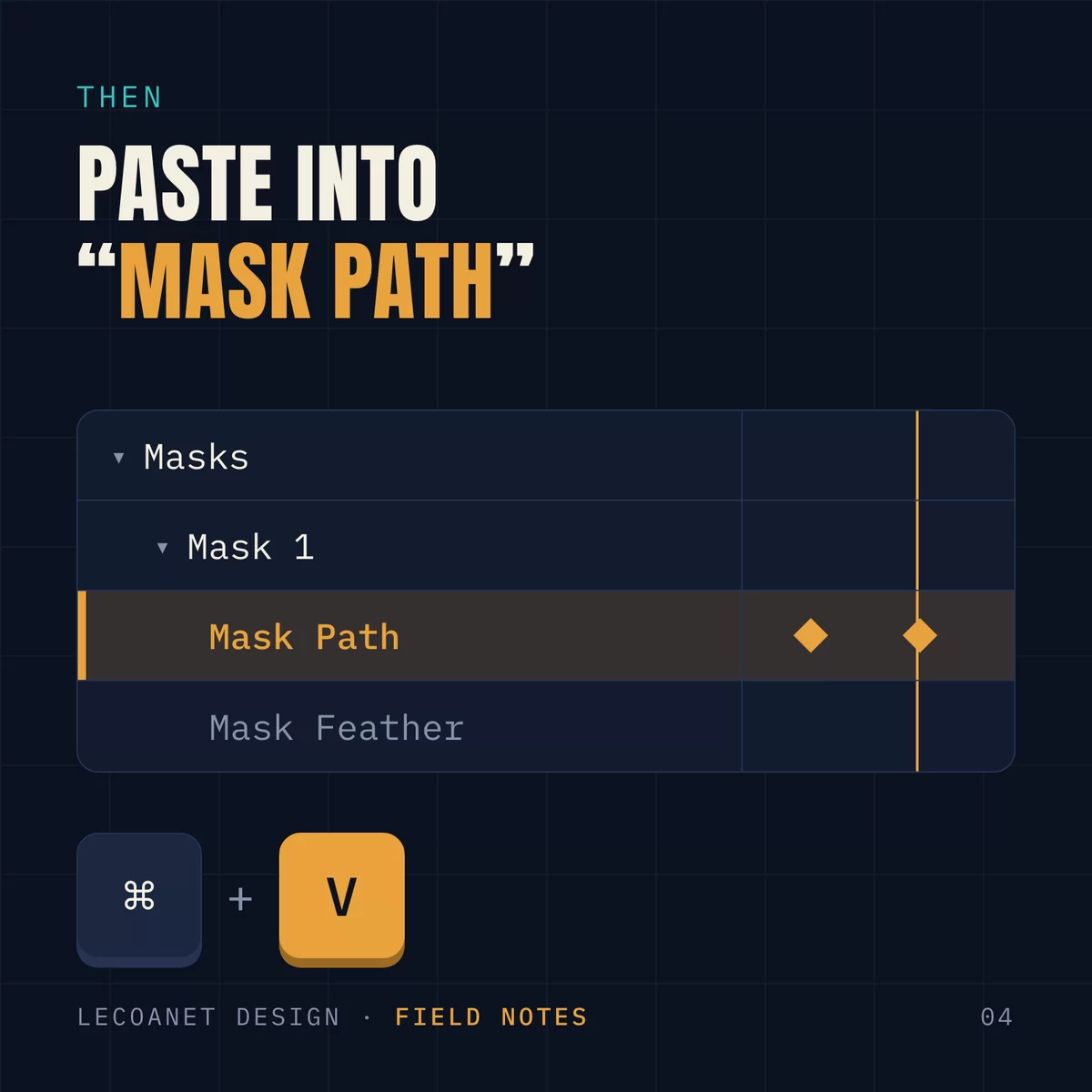
- Replace an existing mask: twirl open Masks → Mask 1, click the words Mask Path, then paste.
- Animate the shape: move the playhead, select Mask Path again, and paste a different path. After Effects adds a keyframe, and the mask morphs from one path to the other.
Good habits
- Position: a pasted mask is placed relative to the layer's top-left corner. Make your Illustrator artboard the same size as the comp, use a comp-sized layer, and the mask lands exactly where you drew it.
- Compound paths: each subpath becomes its own mask. Set the ones that should cut holes to Subtract.
- Need a shape layer after all? Turn Include SVG Code back on.
Comments